
Web APIに接続する実装で簡易的に確認したい時にサクッと確認できるように、簡単なやり方の覚書
準備
とりあえず先にNode.jsがインストールされていなかったらインストールする
https://nodejs.org/en
node --version
npm --version
サクッとyamlで動作確認をするためprismを導入
https://code.visualstudio.com/docs/?dv=win64user
npm install -g @stoplight/prism-cli
prism --version

# 起動
prism mock sample.yml
ついでにyamlからドキュメントを生成するためにRedocを導入
(Swagger UIよりも生成物の見た目が好み&おそらく前のプロジェクトのバックエンドチームも使ってたっぽい)
npm i -g @redocly/cli@latest
redocly --version

# ドキュメント生成
redocly build-docs sample.yml
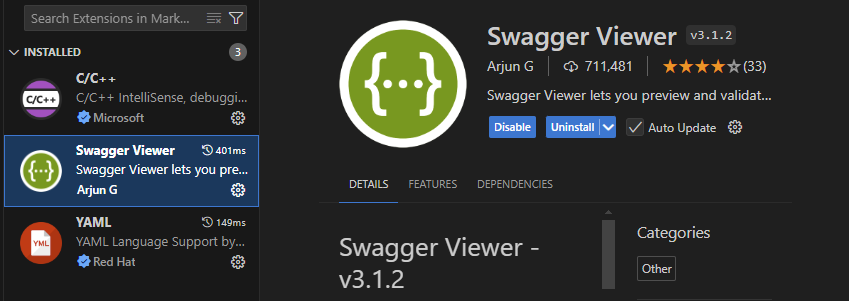
VS CodeにSwagger Viewerを導入
確認
とりあえず簡単なGetを書いてみる
openapi: 3.0.3
info:
  version: 0.1.0
  title: sample
servers:
  - url: 'http://127.0.0.1:4010'
    description: prism
  - url: 'http://10.0.2.2:4010'
    description: Android Studio Emulator
paths:
  /test:
    get:
      summary: summary
      description: description
      responses:
        "200":
          description: ok
          content:
            application/json:
              schema:
                $ref: '#/components/schemas/test'
components:
  schemas:
    test:
      type: object
      properties:
        message:
          type: string
example: 'Test!!'ブラウザでhttp://127.0.0.1:4010/testを開くと{“message”:”Test!!”}が表示される
※ Android Studioのエミュレータは127.0.0.1が10.0.2.2になるので注意
URLパラメータを指定できるようにしたい場合はparametersを指定する
openapi: 3.0.3
info:
  version: 0.1.0
  title: sample
servers:
  - url: 'http://127.0.0.1:4010'
    description: prism
  - url: 'http://10.0.2.2:4010'
    description: Android Studio Emulator
paths:
  /test:
    get:
      summary: summary
      description: description
      parameters:
        - name: id
          in: query
          required: true
          style: form
          explode: true
          description: id
          schema:
            type : integer
            minimum: 1
      responses:
        "200":
          description: ok
          content:
            application/json:
              schema:
                $ref: '#/components/schemas/test'
components:
  schemas:
    test:
      type: object
      properties:
        message:
          type: string
          example: 'Test!!'